

Have you ever opened your Shopee App only to realize you completely forgot your SPayLater due date? Missing a billing deadline is surprisingly easy when life gets busy, but the consequences—unexpected late payment fees and temporary restrictions on your SPayLater credit limit—are a major headache.
Fortunately, you can eliminate billing stress altogether by enabling SPayLater Auto Repayment. This automated feature ensures that you can pay your monthly installments seamlessly from your preferred payment method on your due date, keeping your account in good standing without requiring manual intervention.
In this step-by-step guide, you will learn how to set up SPayLater Auto Repayment, manage and reorder your preferred deduction sources (MariBank account or ShopeePay balance), handle failed payments, and maximize your credit limit over time.
What is SPayLater Auto Repayment & How Does It Work?
SPayLater Auto Repayment is an automated billing feature within the Shopee app designed to streamline monthly bill settlements. Once activated, Shopee’s payment system automatically processes your outstanding SPayLater balance on your scheduled payment due date.
Rather than requiring you to manually navigate to your dashboard and input payment details every month, the automated system pulls funds directly from your designated primary funding source. If the primary source fails or lacks sufficient funds, the system automatically attempts to process the transaction through any backup payment methods you have configured.
Supported Auto Repayment Funding Channels
To ensure seamless transaction processing, Shopee supports several auto-repayment channels:
- ShopeePay Wallet: Instant, real-time auto-deduction directly from your ShopeePay wallet balance.
- Linked MariBank Account: Direct account-to-account debiting with zero transaction fees.
How to Turn On & Set Up SPayLater Auto Repayment
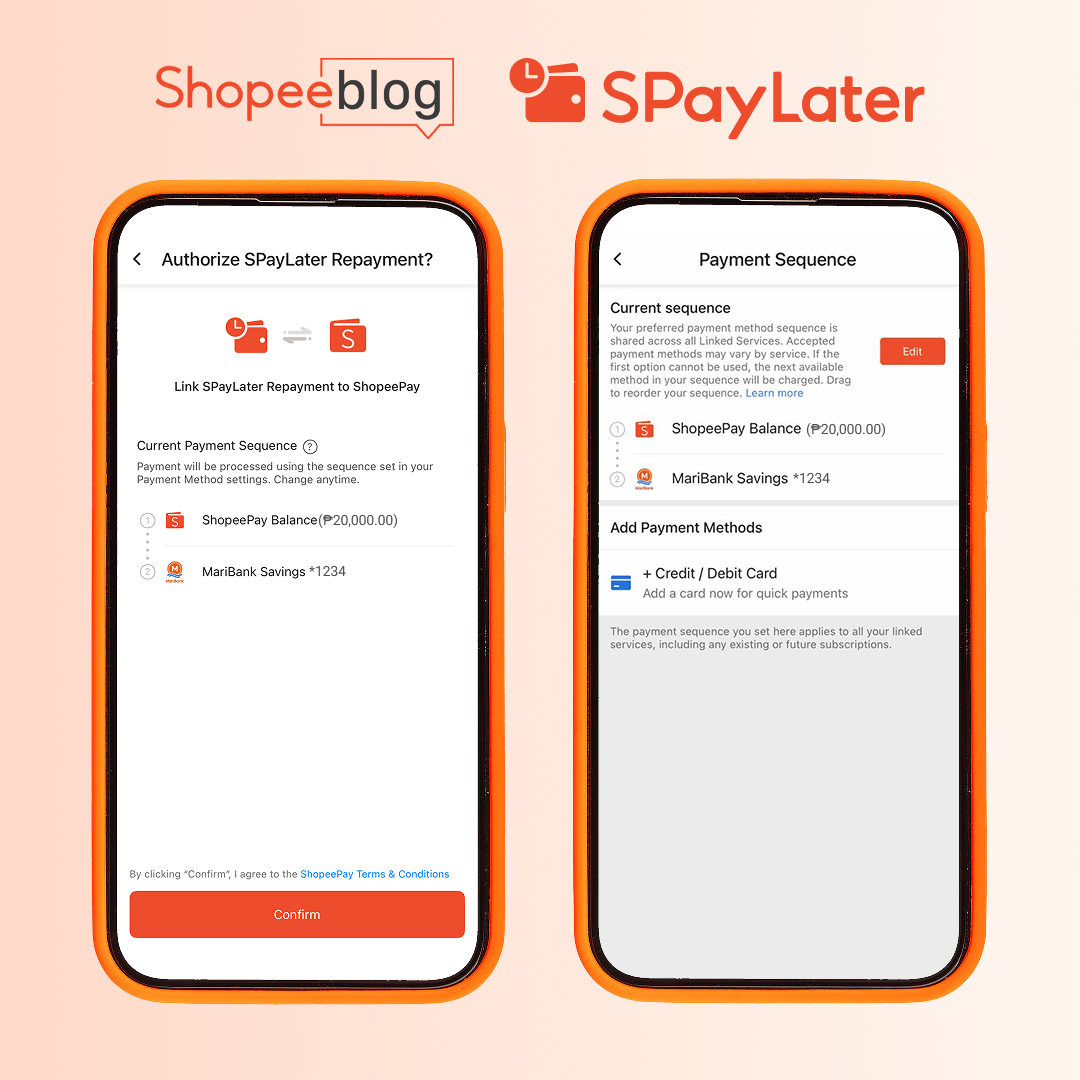
Setting up automated payments takes less than two minutes. Follow this 4-step walkthrough to configure your preferences:
Step 1: Open the Shopee App & Access SPayLater
Launch the Shopee app on your mobile device and tap the Me tab located at the bottom-right corner of the screen. Under the Financial Services section, select SPayLater to open your personal dashboard.
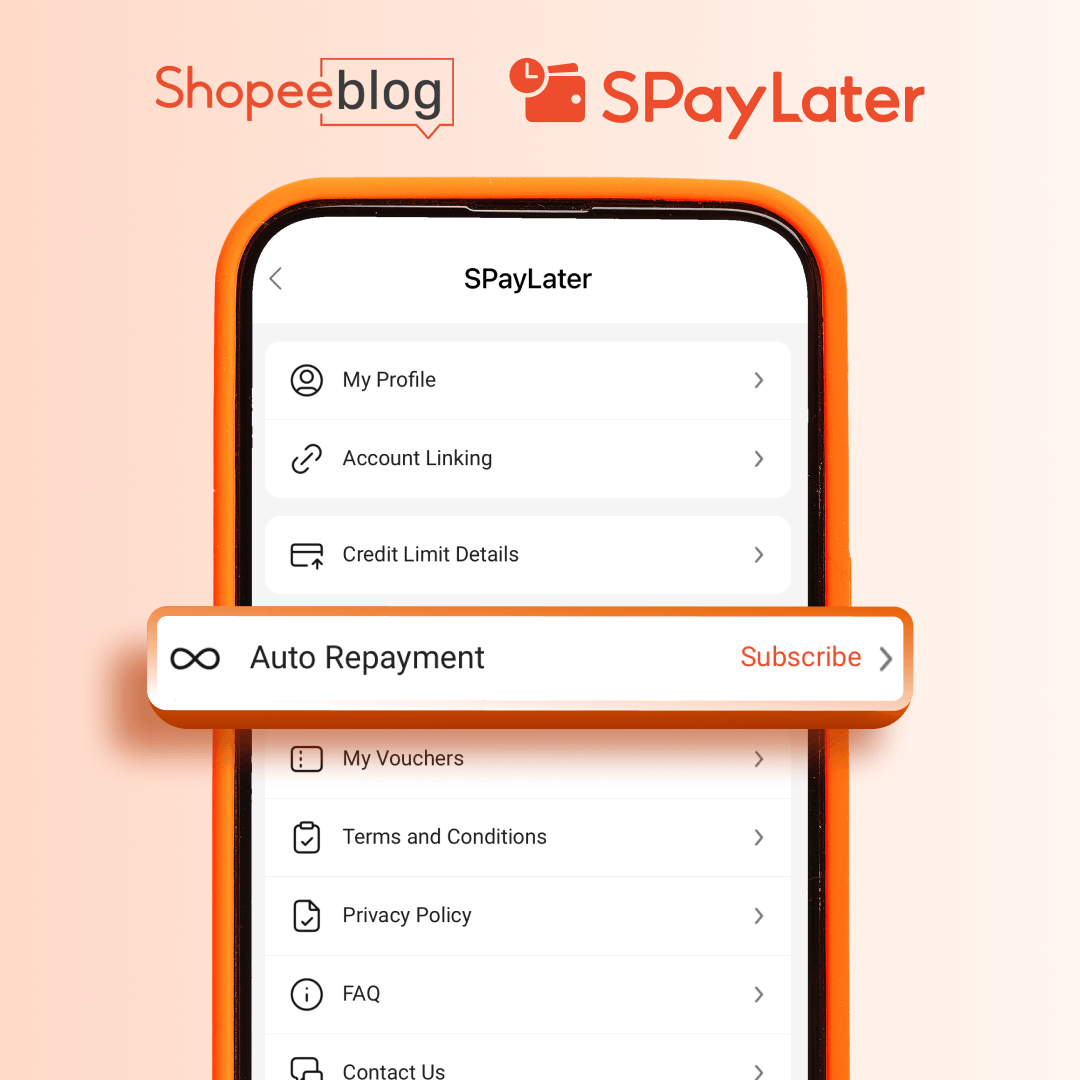
Step 2: Access ‘Auto Repayment’
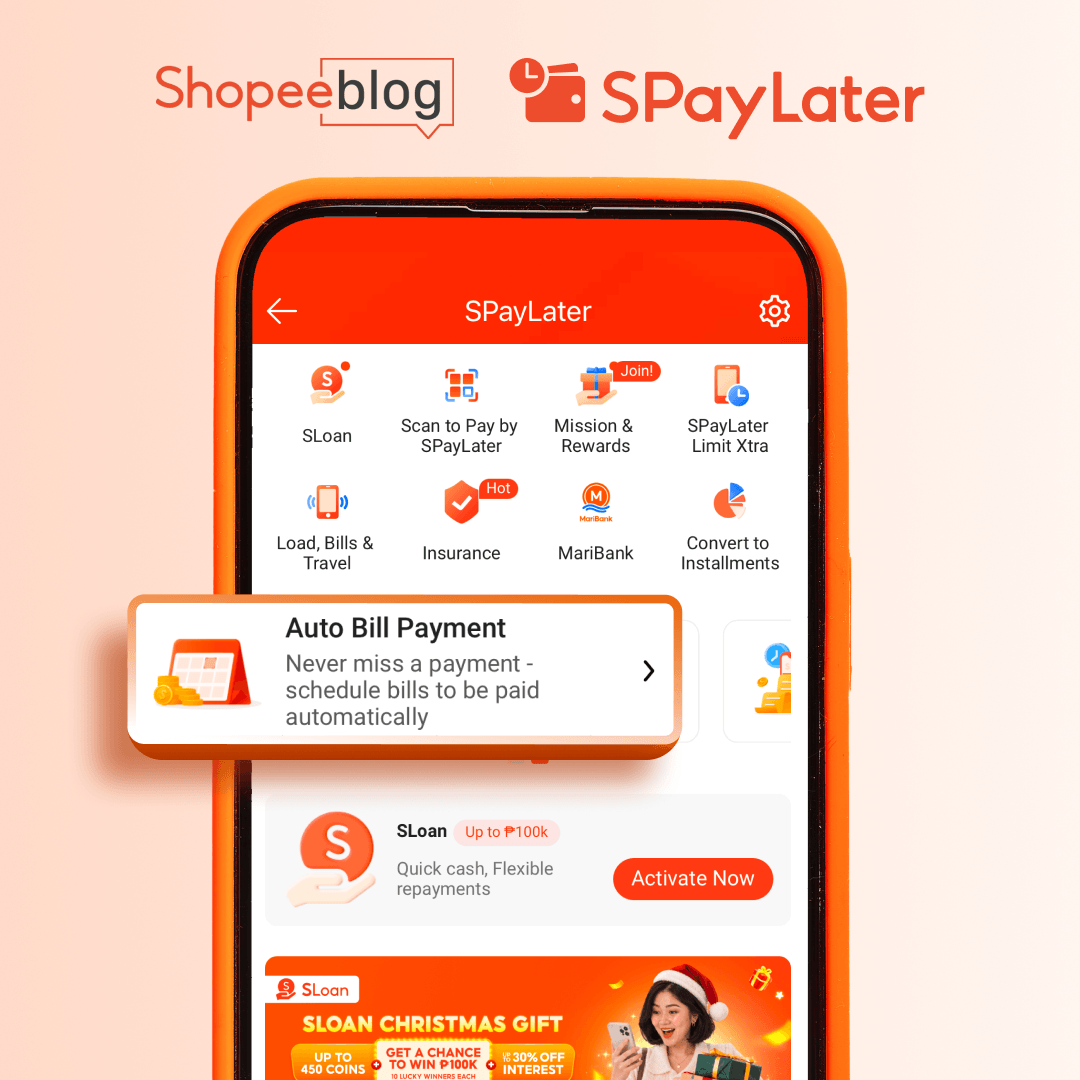
Once inside your SPayLater dashboard, locate and tap on the Settings (Gear Icon) in the top-right corner, or tap on Auto Repayment under the repayment options menu.
Step 3: Arrange Your Auto Repayment Sequence & Save
Shopee allows you to set up a prioritized payment hierarchy. Drag and arrange your primary payment method to the top of the list, followed by your preferred backup sources (e.g., MariBank Account first, followed by ShopeePay). Once your payment sequence is ordered correctly, tap Save & Confirm.
Removing MariBank as a Payment Method
To remove a MariBank account from your payment sequence and prevent it from being used for autorepayments, follow these steps:
Me Tab ➔ Account Settings (Gear Icon) ➔ Payment Sequence ➔ Payment Sequence Settings ➔ Select Maribank ➔ Delete
- Go to the Me tab, open the SPayLater homepage, then tap Account Settings (Gear Icon) in the top-right corner.
- Under Auto Repayment, click on Payment Sequence and then click Payment Sequence Settings.
- Edit. Tap the X next to MariBank, then tap Confirm.
What Happens If Auto Repayment Fails?
Understanding how the system reacts to payment failures helps you avoid unwanted late charges or account freezes.
The Impact of Insufficient Funds
If your primary payment channel does not have sufficient funds when the auto-deduction occurs, Shopee’s system will attempt the following sequence:
- Backup Channel Deduction: The system automatically attempts to pull the exact balance from your secondary backup methods in the order you established during setup.
- Multiple System Retries: If all channels fail, the automated engine may re-attempt deduction later in the day or on the following day.
- Late Payment Charges: If the total outstanding amount remains unpaid past the due date, a fixed late repayment fee (late fees range from 2.5 to 5%) will be applied to your monthly bill.
- Account Suspension: Your SPayLater credit limit will be temporarily frozen, preventing new purchases until the outstanding balance and associated late fees are settled in full.
Tip: Keep enough balance in your funding source a day or two before your due date so your deduction goes through smoothly.
Fallback to Manual Repayment
If auto-deduction fails due to system maintenance, insufficient balances, or bank downtime, you should immediately perform a manual repayment to prevent fees.
To manually settle your bill:
- Go to Me > SPayLater > Pay Bill.
- Review your total balance due and tap Pay Now.
- Select an alternative real-time payment channel such as MariBank, ShopeePay, or your preferred bank or e-wallet.
- Complete the channel authentication to settle your bill instantly.
Benefits of Enabling Auto Repayment for SPayLater
Automating your monthly installment settlements provides clear financial and convenience advantages:
1. Zero Late Fees
By automating the deduction on or before your due date, you completely eliminate the risk of oversight and late fees.
2. Boost Your Credit Limit
Shopee evaluates account payment history regularly. Consistent, on-time repayments through automated billing build a positive payment track record, increasing your chances of receiving automatic SPayLater credit limit upgrades.
3. Total Peace of Mind
Managing multiple digital subscription and installment due dates can be overwhelming. Auto Repayment delivers hands-free billing management, removing the need to set monthly calendar reminders or worry about manual transactions.
Frequently Asked Questions (FAQ)
Does SPayLater charge extra fees for using Auto Repayment?
A: No, enabling and using Auto Repayment is completely free. Shopee does not charge added service fees for automated deductions,
Can I pay my SPayLater bill before the auto-deduction date?
A: Yes. You can manually pay your SPayLater bill at any point during the billing cycle by going to SPayLater > Pay Bill. If your total monthly balance is paid in full before the due date, the system will not trigger an auto-deduction.
What time on the due date does auto-deduction occur?
Auto-deductions are processed periodically throughout the payment due date. You will receive a push notification and in-app message confirming whether the automated deduction was successful or if action is required.
What happens if I have insufficient funds?
A: If your primary account has insufficient funds, the system will move to the next available payment method on your payment sequence to try and cover the bill.
If the backup method is still short of the full amount, the automatic deduction will fail completely. When this happens, you will receive a notification alerting you about the failed payment so you can settle it manually instead.
Why are other payment methods not available?
A: As of now, only ShopeePay and Maribank are supported for SPayLater Auto-Repayment. Shopee uses ShopeePay and MariBank for the automated monthly feature to keep transactions seamless and secure.
This specialized system avoids the common processing delays and safety checks that usually happen with other payment methods.
Don’t worry, you may continue to use other payment methods, such as your debit and credit cards, for your other subscriptions.
Take Control of Your Payments: Turn On Auto Repayment Today
Why risk late penalty fees or an account freeze when you can automate your peace of mind in just four clicks? Open your Shopee app now, navigate to Me > SPayLater > Settings, and configure your primary funding source today. Set up your auto-repayment hierarchy now and enjoy stress-free, seamless shopping without ever missing a billing deadline again!